 4d8071551c
The maxReadFileLine setting existed as a type definition and in the webview default state but was never actually wired into the ReadFileTool or the tool description. The tool always used the hardcoded DEFAULT_LINE_LIMIT of 2000 lines regardless of the setting. This commit: - Adds maxReadFileLine to ClineProvider.getState() so it flows through the state pipeline - Passes maxReadFileLine through getNativeTools -> createReadFileTool so the tool description reflects the actual configured limit - Uses maxReadFileLine in ReadFileTool.processTextFile() to override DEFAULT_LINE_LIMIT at runtime - Adds resolveLineLimit() helper: -1 = default (2000), 0 = no limit (read entire file), positive = custom limit - Adds tests for resolveLineLimit and createReadFileTool options Fixes #11754 |
||
|---|---|---|
| .changeset | ||
| .github | ||
| .husky | ||
| .roo | ||
| .vscode | ||
| apps | ||
| locales | ||
| packages | ||
| releases | ||
| scripts | ||
| src | ||
| webview-ui | ||
| .dockerignore | ||
| .env.sample | ||
| .git-blame-ignore-revs | ||
| .gitattributes | ||
| .gitconfig | ||
| .gitignore | ||
| .nvmrc | ||
| .prettierrc.json | ||
| .rooignore | ||
| .roomodes | ||
| .tool-versions | ||
| AGENTS.md | ||
| CHANGELOG.md | ||
| CODE_OF_CONDUCT.md | ||
| CONTRIBUTING.md | ||
| ellipsis.yaml | ||
| knip.json | ||
| LICENSE | ||
| package.json | ||
| pnpm-lock.yaml | ||
| pnpm-workspace.yaml | ||
| PRIVACY.md | ||
| progress.txt | ||
| README.md | ||
| renovate.json | ||
| SECURITY.md | ||
| tsconfig.json | ||
| turbo.json | ||




Get help fast → Join Discord • Prefer async? → Join r/RooCode
Roo Code
Your AI-Powered Dev Team, Right in Your Editor
🌐 Available languages
What Can Roo Code Do For YOU?
- Generate Code from natural language descriptions and specs
- Adapt with Modes: Code, Architect, Ask, Debug, and Custom Modes
- Refactor & Debug existing code
- Write & Update documentation
- Answer Questions about your codebase
- Automate repetitive tasks
- Utilize MCP Servers
Modes
Roo Code adapts to how you work:
- Code Mode: everyday coding, edits, and file ops
- Architect Mode: plan systems, specs, and migrations
- Ask Mode: fast answers, explanations, and docs
- Debug Mode: trace issues, add logs, isolate root causes
- Custom Modes: build specialized modes for your team or workflow
Learn more: Using Modes • Custom Modes
Tutorial & Feature Videos
 Installing Roo Code |
 Configuring Profiles |
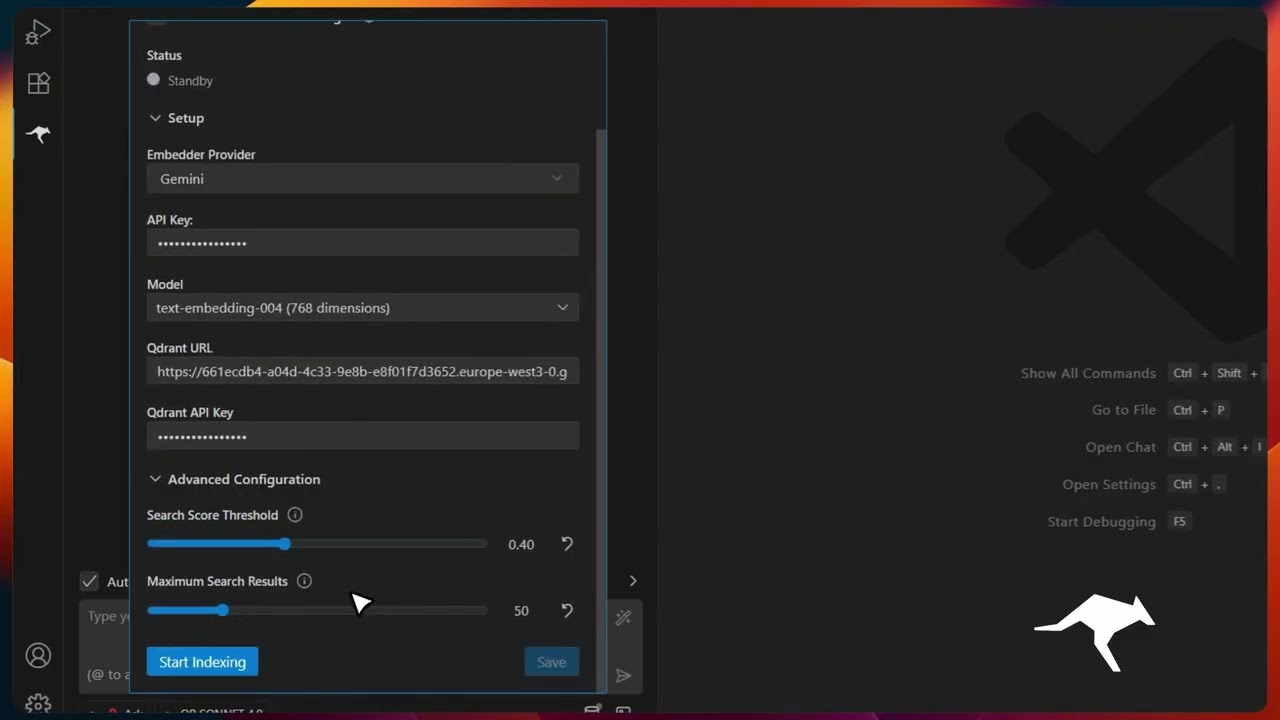 Codebase Indexing |
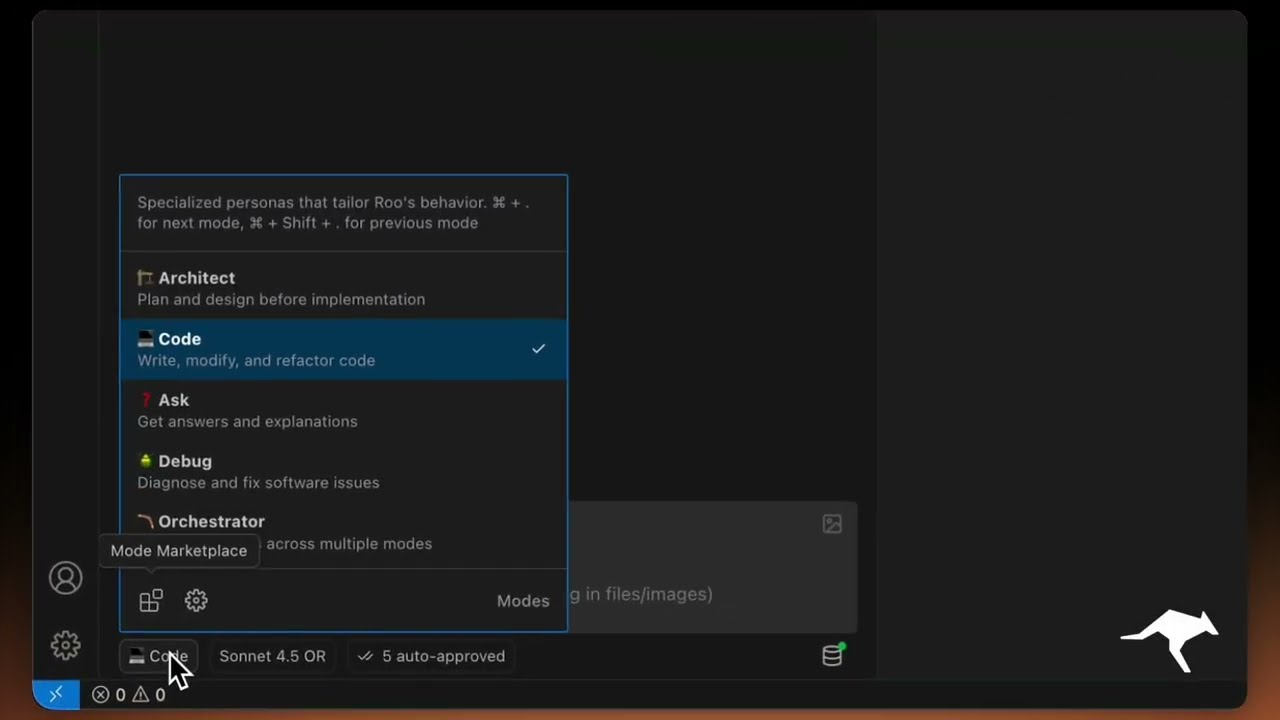 Custom Modes |
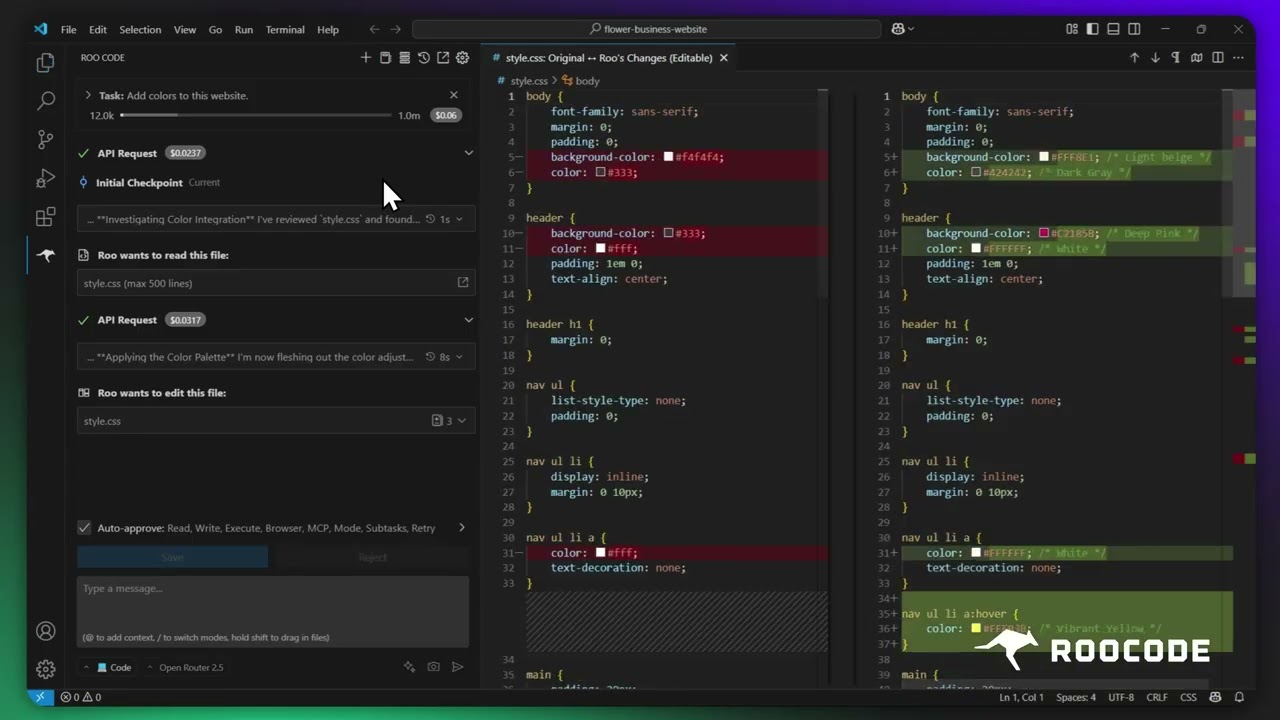 Checkpoints |
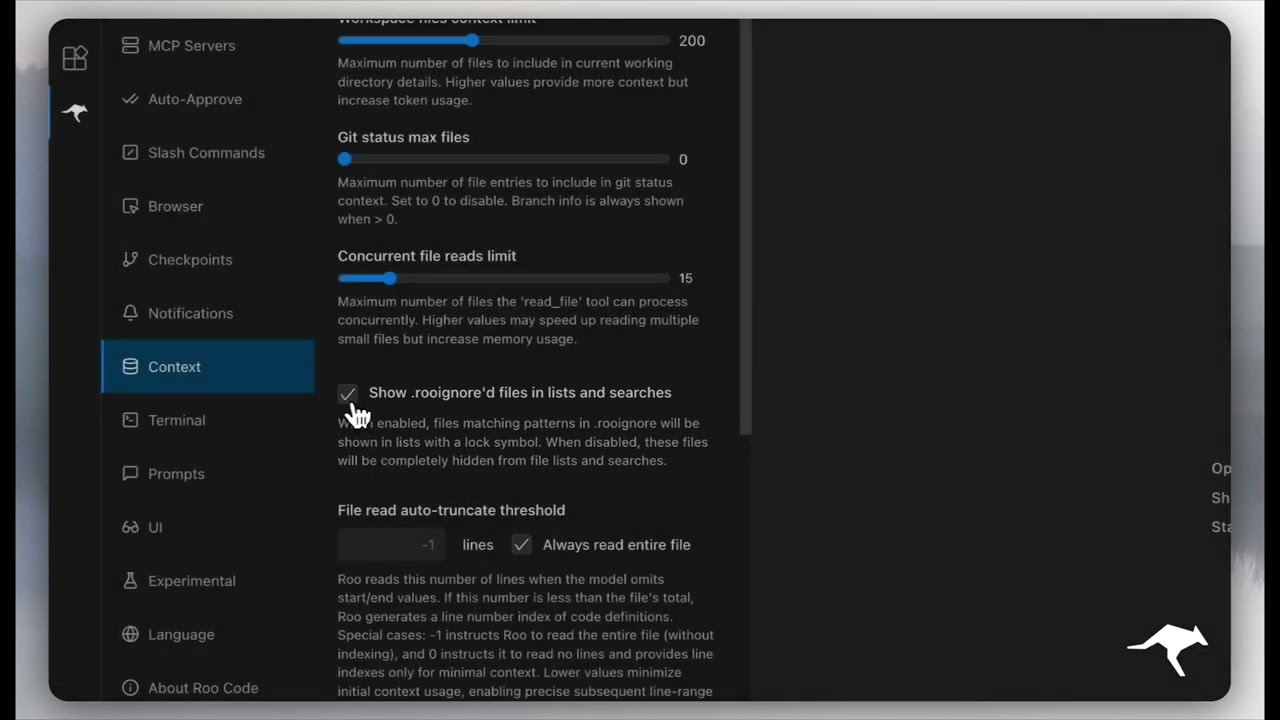 Context Management |
More quick tutorial and feature videos...
Resources
- Documentation: The official guide to installing, configuring, and mastering Roo Code.
- YouTube Channel: Watch tutorials and see features in action.
- Discord Server: Join the community for real-time help and discussion.
- Reddit Community: Share your experiences and see what others are building.
- GitHub Issues: Report bugs and track development.
- Feature Requests: Have an idea? Share it with the developers.
Local Setup & Development
- Clone the repo:
git clone https://github.com/RooCodeInc/Roo-Code.git
- Install dependencies:
pnpm install
- Run the extension:
There are several ways to run the Roo Code extension:
Development Mode (F5)
For active development, use VSCode's built-in debugging:
Press F5 (or go to Run → Start Debugging) in VSCode. This will open a new VSCode window with the Roo Code extension running.
- Changes to the webview will appear immediately.
- Changes to the core extension will also hot reload automatically.
Automated VSIX Installation
To build and install the extension as a VSIX package directly into VSCode:
pnpm install:vsix [-y] [--editor=<command>]
This command will:
- Ask which editor command to use (code/cursor/code-insiders) - defaults to 'code'
- Uninstall any existing version of the extension.
- Build the latest VSIX package.
- Install the newly built VSIX.
- Prompt you to restart VS Code for changes to take effect.
Options:
-y: Skip all confirmation prompts and use defaults--editor=<command>: Specify the editor command (e.g.,--editor=cursoror--editor=code-insiders)
Manual VSIX Installation
If you prefer to install the VSIX package manually:
- First, build the VSIX package:
pnpm vsix - A
.vsixfile will be generated in thebin/directory (e.g.,bin/roo-cline-<version>.vsix). - Install it manually using the VSCode CLI:
code --install-extension bin/roo-cline-<version>.vsix
We use changesets for versioning and publishing. Check our CHANGELOG.md for release notes.
Disclaimer
Please note that Roo Code, Inc does not make any representations or warranties regarding any code, models, or other tools provided or made available in connection with Roo Code, any associated third-party tools, or any resulting outputs. You assume all risks associated with the use of any such tools or outputs; such tools are provided on an "AS IS" and "AS AVAILABLE" basis. Such risks may include, without limitation, intellectual property infringement, cyber vulnerabilities or attacks, bias, inaccuracies, errors, defects, viruses, downtime, property loss or damage, and/or personal injury. You are solely responsible for your use of any such tools or outputs (including, without limitation, the legality, appropriateness, and results thereof).
Contributing
We love community contributions! Get started by reading our CONTRIBUTING.md.
License
Apache 2.0 © 2025 Roo Code, Inc.
Enjoy Roo Code! Whether you keep it on a short leash or let it roam autonomously, we can’t wait to see what you build. If you have questions or feature ideas, drop by our Reddit community or Discord. Happy coding!