 69472099ea
* feat: add prompt history navigation with arrow keys (#4139) - Navigate through prompt history using arrow up/down keys - Only triggers when cursor is at first line (up) or last line (down) - Preserves current input when starting navigation - Resets navigation state when typing or sending messages - Follows VSCode's standard UX patterns for history navigation * fix: correct prompt history order and add workspace filtering (#4139) - Remove reverse() to maintain chronological order in history array - Add workspace filtering to only show prompts from current workspace - Ensure arrow up navigates to older prompts (as expected) - Filter history items by workspace field matching current cwd * test: Fix Windows unit test failures for prompt history navigation - Add missing taskHistory and cwd properties to all useExtensionState mocks - Add comprehensive test coverage for prompt history navigation feature - Ensure all 25 tests pass including new prompt history functionality Fixes failing Windows CI test in PR #4450 * refactor: Improve cursor positioning with useLayoutEffect - Replace setTimeout(..., 0) with useLayoutEffect for more reliable cursor positioning - Implement state-based cursor positioning pattern suggested by @mochiya98 - Add CursorPositionState interface for better type safety - Maintain all existing functionality while improving timing reliability This addresses the technical suggestion in PR #4450 comment about using useLayoutEffect instead of setTimeout for DOM manipulation timing. * feat: optimize prompt history with performance improvements and memory management - Add useMemo for prompt history filtering to prevent unnecessary re-computations - Implement MAX_PROMPT_HISTORY_SIZE = 100 limit for memory management - Extract logic into usePromptHistory custom hook for better code organization - Simplify ChatTextArea component by delegating history logic to custom hook Addresses review feedback on PR #4450 for issue #4139 * refactor: clean up unused code and fix linting issues in prompt history - Remove unused CursorPositionState interface from ChatTextArea - Remove unused destructured variables from usePromptHistory hook - Fix missing dependency in useEffect dependency array - Rename unused parameter with underscore prefix Related to #4139 * feat: implement hybrid prompt history with position reset - In chat: Use conversation messages (user_feedback), newest first - Out of chat: Use task history, oldest first - Reset navigation position when switching between history sources - Switch from taskHistory to clineMessages for active conversations - Maintain backward compatibility with task history fallback - Add comprehensive tests for hybrid behavior and position reset This provides intuitive UX where: - Users navigate recent conversation messages during tasks (newest first) - Users access initial task prompts when starting fresh (oldest first) - Navigation always starts fresh when switching contexts * fix: correct task history slicing order for prompt navigation Task history was using .slice(-100) which gets the newest 100 tasks, but we want to show oldest tasks first when navigating. Changed to .slice(0, 100) to get the oldest 100 tasks instead. This ensures that when starting fresh (no conversation), up arrow shows the oldest task prompts first, which is the intended behavior. * refactor: remove comment on task history size limitation and clarify order preservation * refactor: replace local ClineMessage and TaskHistoryItem interfaces with imported types * fix: prevent prompt history fallback to task list during active conversation When an active task has only an initial prompt with no follow-up user messages, the prompt history should return empty instead of falling back to task history. This fixes the "Starting Fresh" behavior appearing inappropriately. 🤖 Generated with [Claude Code](https://claude.ai/code) Co-Authored-By: Claude <noreply@anthropic.com> --------- Co-authored-by: Daniel Riccio <ricciodaniel98@gmail.com> Co-authored-by: Claude <noreply@anthropic.com> |
||
|---|---|---|
| .changeset | ||
| .github | ||
| .husky | ||
| .roo | ||
| .vscode | ||
| apps | ||
| locales | ||
| packages | ||
| scripts | ||
| src | ||
| webview-ui | ||
| .dockerignore | ||
| .env.sample | ||
| .git-blame-ignore-revs | ||
| .gitattributes | ||
| .gitconfig | ||
| .gitignore | ||
| .nvmrc | ||
| .prettierrc.json | ||
| .rooignore | ||
| .roomodes | ||
| .tool-versions | ||
| CHANGELOG.md | ||
| CODE_OF_CONDUCT.md | ||
| CONTRIBUTING.md | ||
| ellipsis.yaml | ||
| knip.json | ||
| LICENSE | ||
| MONOREPO.md | ||
| package.json | ||
| pnpm-lock.yaml | ||
| pnpm-workspace.yaml | ||
| PRIVACY.md | ||
| README.md | ||
| renovate.json | ||
| SECURITY.md | ||
| turbo.json | ||
English • Català • Deutsch • Español • Français • हिन्दी • Italiano • Nederlands • Русский
日本語 • 한국어 • Polski • Português (BR) • Türkçe • Tiếng Việt • 简体中文 • 繁體中文
Roo Code (prev. Roo Cline)
Connect with developers, contribute ideas, and stay ahead with the latest AI-powered coding tools.






Roo Code is an AI-powered autonomous coding agent that lives in your editor. It can:
- Communicate in natural language
- Read and write files directly in your workspace
- Run terminal commands
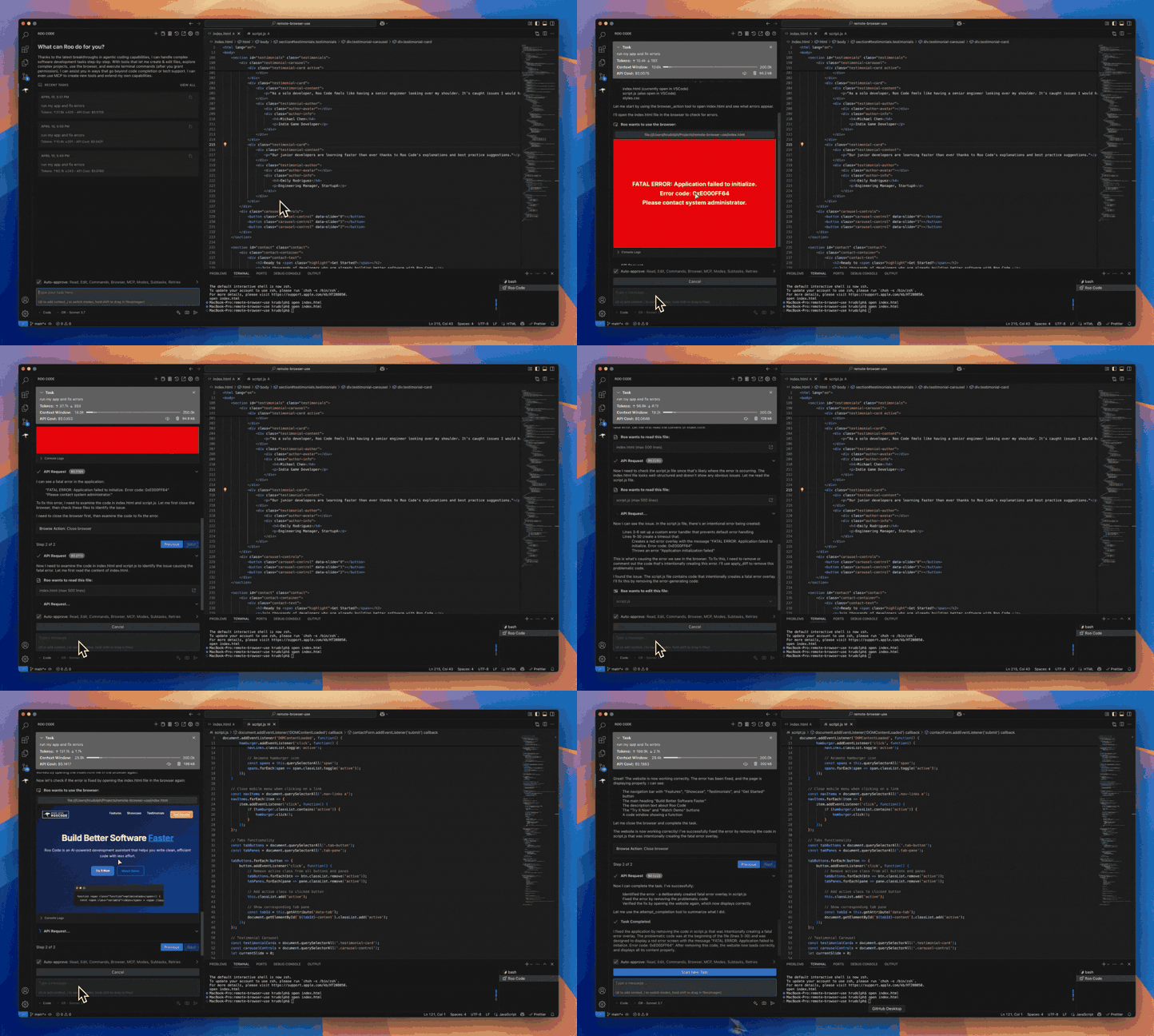
- Automate browser actions
- Integrate with any OpenAI-compatible or custom API/model
- Adapt its “personality” and capabilities through Custom Modes
Whether you’re seeking a flexible coding partner, a system architect, or specialized roles like a QA engineer or product manager, Roo Code can help you build software more efficiently.
Check out the CHANGELOG for detailed updates and fixes.
🎉 Roo Code 3.19 Released
Roo Code 3.19 brings intelligent context management improvements and enhanced user experience!
- Intelligent Context Condensing Enabled by Default - Context condensing is now enabled by default with configurable settings for when automatic condensing happens.
- Manual Condensing Button - New button in the task header allows you to manually trigger context condensing at any time.
- Enhanced Condensing Settings - Fine-tune when and how automatic condensing occurs through the Context Settings panel.
What Can Roo Code Do?
- 🚀 Generate Code from natural language descriptions
- 🔧 Refactor & Debug existing code
- 📝 Write & Update documentation
- 🤔 Answer Questions about your codebase
- 🔄 Automate repetitive tasks
- 🏗️ Create new files and projects
Quick Start
Key Features
Multiple Modes
Roo Code adapts to your needs with specialized modes:
- Code Mode: For general-purpose coding tasks
- Architect Mode: For planning and technical leadership
- Ask Mode: For answering questions and providing information
- Debug Mode: For systematic problem diagnosis
- Custom Modes: Create unlimited specialized personas for security auditing, performance optimization, documentation, or any other task
Smart Tools
Roo Code comes with powerful tools that can:
- Read and write files in your project
- Execute commands in your VS Code terminal
- Control a web browser
- Use external tools via MCP (Model Context Protocol)
MCP extends Roo Code's capabilities by allowing you to add unlimited custom tools. Integrate with external APIs, connect to databases, or create specialized development tools - MCP provides the framework to expand Roo Code's functionality to meet your specific needs.
Customization
Make Roo Code work your way with:
- Custom Instructions for personalized behavior
- Custom Modes for specialized tasks
- Local Models for offline use
- Auto-Approval Settings for faster workflows
Resources
Documentation
Community
- Discord: Join our Discord server for real-time help and discussions
- Reddit: Visit our subreddit to share experiences and tips
- GitHub: Report issues or request features
Local Setup & Development
- Clone the repo:
git clone https://github.com/RooCodeInc/Roo-Code.git
- Install dependencies:
pnpm install
- Run the extension:
Press F5 (or Run → Start Debugging) in VSCode to open a new window with Roo Code running.
Changes to the webview will appear immediately. Changes to the core extension will require a restart of the extension host.
Alternatively you can build a .vsix and install it directly in VSCode:
pnpm vsix
A .vsix file will appear in the bin/ directory which can be installed with:
code --install-extension bin/roo-cline-<version>.vsix
We use changesets for versioning and publishing. Check our CHANGELOG.md for release notes.
Disclaimer
Please note that Roo Code, Inc does not make any representations or warranties regarding any code, models, or other tools provided or made available in connection with Roo Code, any associated third-party tools, or any resulting outputs. You assume all risks associated with the use of any such tools or outputs; such tools are provided on an "AS IS" and "AS AVAILABLE" basis. Such risks may include, without limitation, intellectual property infringement, cyber vulnerabilities or attacks, bias, inaccuracies, errors, defects, viruses, downtime, property loss or damage, and/or personal injury. You are solely responsible for your use of any such tools or outputs (including, without limitation, the legality, appropriateness, and results thereof).
Contributing
We love community contributions! Get started by reading our CONTRIBUTING.md.
Contributors
Thanks to all our contributors who have helped make Roo Code better!











License
Apache 2.0 © 2025 Roo Code, Inc.
Enjoy Roo Code! Whether you keep it on a short leash or let it roam autonomously, we can’t wait to see what you build. If you have questions or feature ideas, drop by our Reddit community or Discord. Happy coding!